Date: 27 September 2022
The deposit return scheme will be introduced in Scotland for consumers on 16 August 2023.
Aiming to reduce waste and encourage more recycling the scheme means that for certain items a deposit charge of 20p will be made and will be refunded when the can / bottle is returned.
The outlined products that are included in the scheme are:
-
PET plastic bottles (like most fizzy drinks and water bottles)
-
Steel and aluminium cans
-
Glass bottles
For more information click here to visit Zero Waste Scotland
The information contained within this bulletin will help Zonal customers in Scotland to configure their systems if they are selling products for off premise consumption, this is based on Zonal's recommended best practice. Customers are free to change any of the steps or setup to meet their own operational requirements.
 Aztec Setup & Configuration
Hierarchy & Product Setup
To keep sales and refunds separate of any other product division it is recommended to create a new product structure for the deposit return scheme.
Head Office Configuration - Base Data Hierarchy & Portion
-
At Head Office, open Base Data | select Product Configuration | Product Structure
-
Click Add | New Product Division | add required name, for example Deposit Return
-
Complete the structure by adding Sub Division | Super Category | Category | and Sub Category
-
Optional - depending on the configuration of your systems there may already be a portion used against products for off premises sales, eg take away / Uber / Deliveroo etc if there is no existing portion you can create one by selecting Product Configuration | Portions | add Portion
Head Office Configuration - Product Setup
Depending on your setup and configuration you might choose two options
Option 1: Add a new portion to each product that is for sale off premise (or use existing portion)
or
Option 2: Create a new separate product for these items
-
At Head Office, open Product Modelling | create 2 new recipe products against the newly created sub category, ensure the tax rule is set to Zero Rate
If no existing tax rule for Zero rate is available click here to view the setup information for tax rules
DRS Charge and DRS Refund
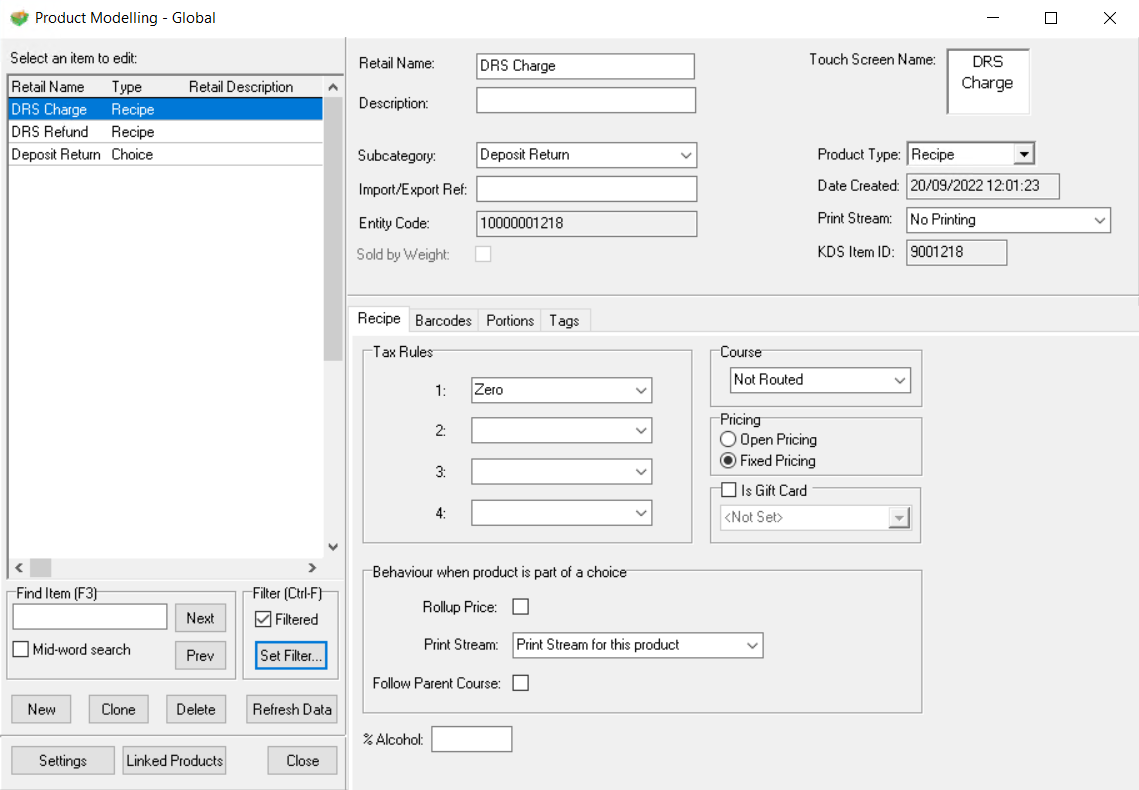
It is recommended to create two separate products so charges and refunds can be tracked separately through reporting
-
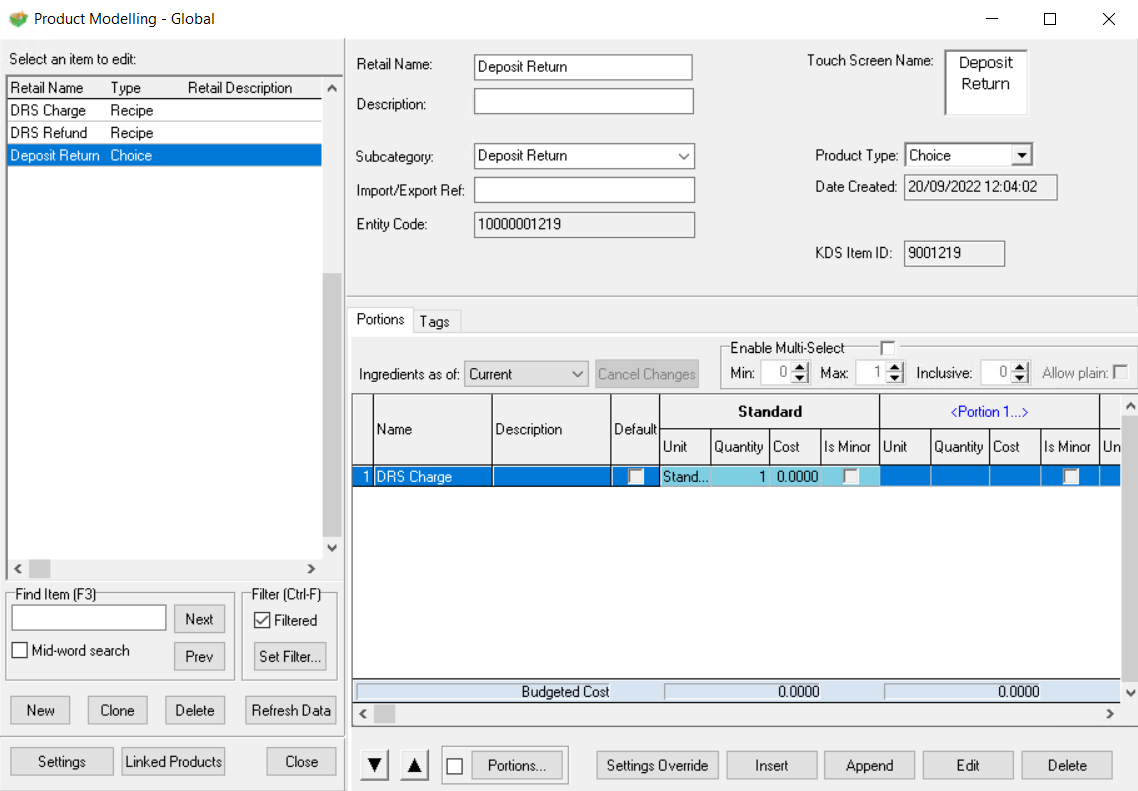
In the same sub category create a choice product, add as an ingredient into the choice the DRS Charge recipe product
-
If you have selected option 1 add as an ingredient the choice to products with the existing or newly created portion (setting other portions to be a quantity of 0 against the choice ingredient)
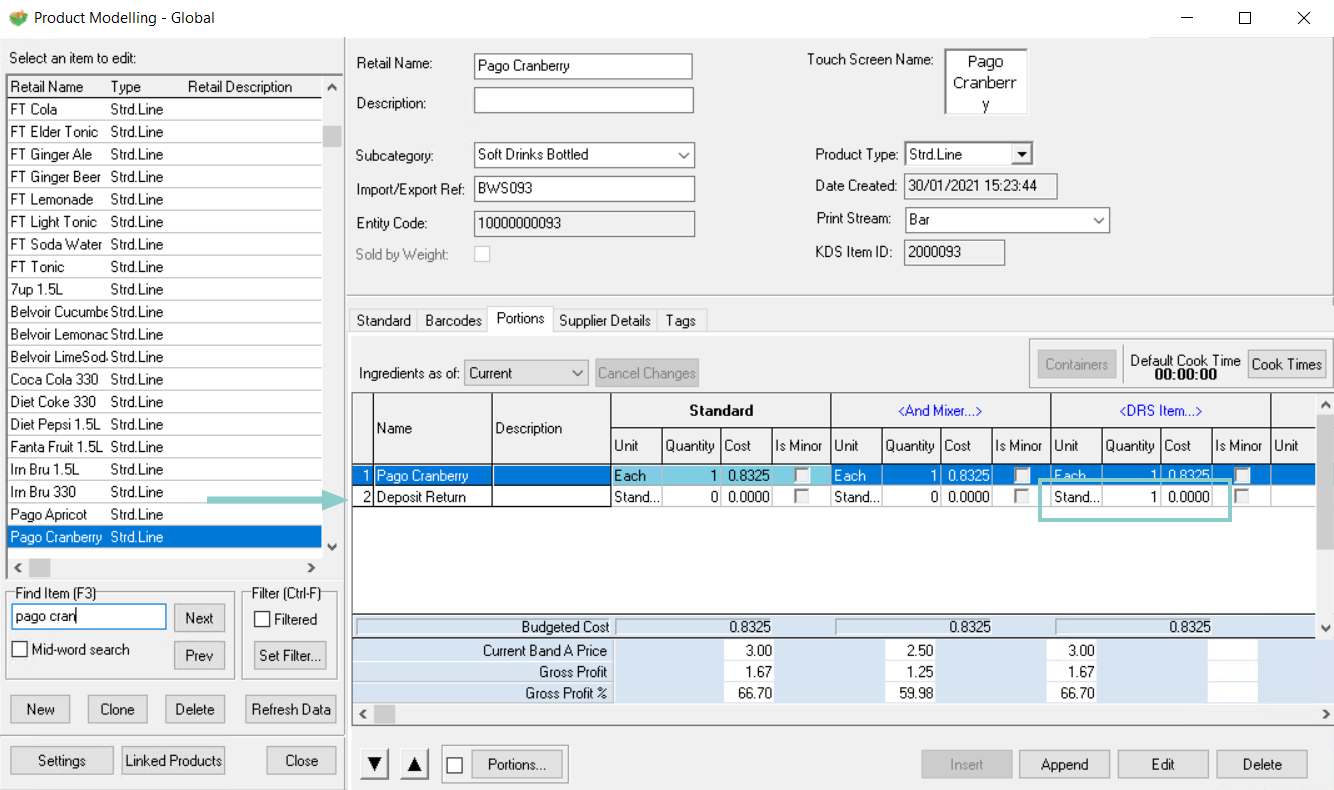
If you have selected option 2 add an ingredient the choice to newly created products
Pricing Configuration
Head Office Configuration - Pricing
-
At Head Office, open Standard Pricing | Sales Area Banding | from the filters select there required sites and DRS sub categories
-
Assign the price band and required start date, copying to all necessary sites and sales areas
-
Click Save | Close
-
Complete the steps 1 - 3 again under Supplement Bandingthis will ensure the choice will charge the correct 20p on top of the product price
-
Close the supplement banding screen and open the Price Matrix | set the 20p value against both products in the required price band(s)
-
Click Save
Theme Configuration
Head Office Configuration - Add button to Theme
The DRS Charge & Refund buttons needs to be added to the relevant theme, this can be found in the button picker under the Relevant Sub Category
For detailed information on adding buttons to theme panels root or local panels click here or for shared / variation panels here.
POS Operations
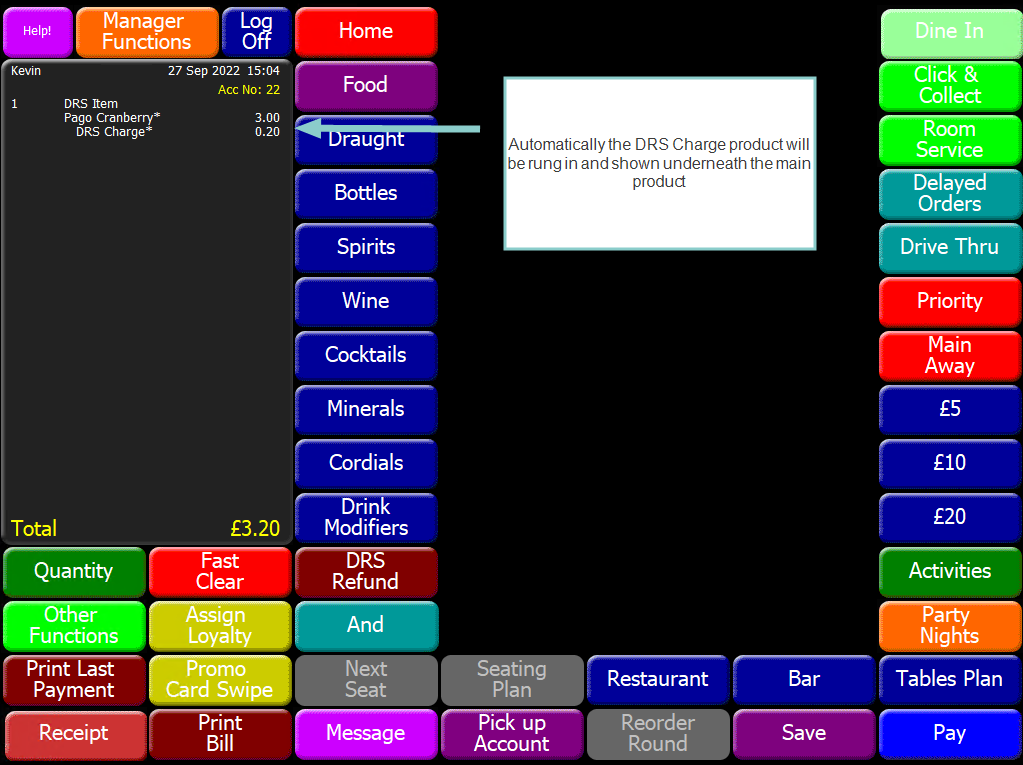
When the product is sold the additional 20p will show automatically under the product.
Refund Configuration
In order to process refunds through the POS terminal it maybe necessary to add the special Refund button on to the theme.
Head Office Configuration - Add button to Theme
The Refund button needs to be added to the relevant theme, this can be found in the button picker under Functions | Ordering
For detailed information on adding buttons to theme panels root or local panels click here or for shared / variation panels here.
If you allow team members to access this function remember to add to your theme where security will not prevent them from using this function
POS Operations
-
Press the Refund button
-
Press the DRS Refund product
-
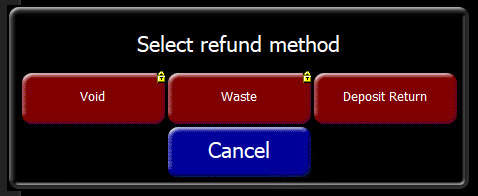
Select the Refund Method
You may choose to configure a new refund method so that these are reported separately and has open security (compared to other correction methods that team members are not able to access as shown in the below image)
-
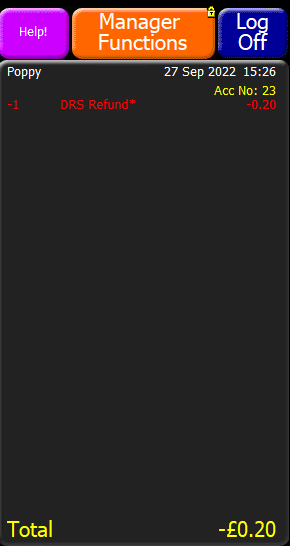
The refunded DRS item will be shown as -0.20 on the order display, allowing the operator to refund to whatever payment method is being used
If your organisation processes a lot of refunds to speed up the process a macro can be recorded that will automatically press all the buttons in the above steps
Reporting
To track values the deposits taken and refunds we recommend utilising the following reports:
-
Product Sales
-
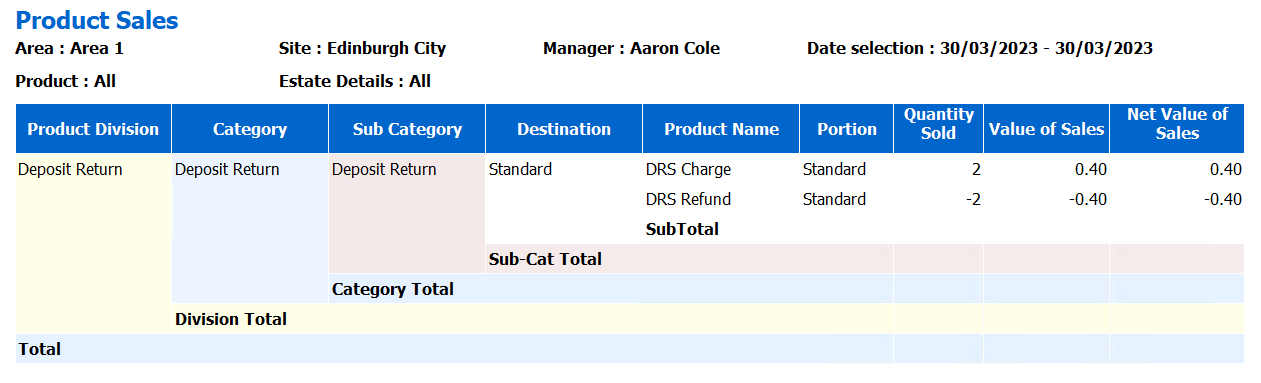
Apply filters to look at the division Deposit Return (or whatever name was configured)
-
The report will display quantity and sales values for both deposits taken and refunded
-
-
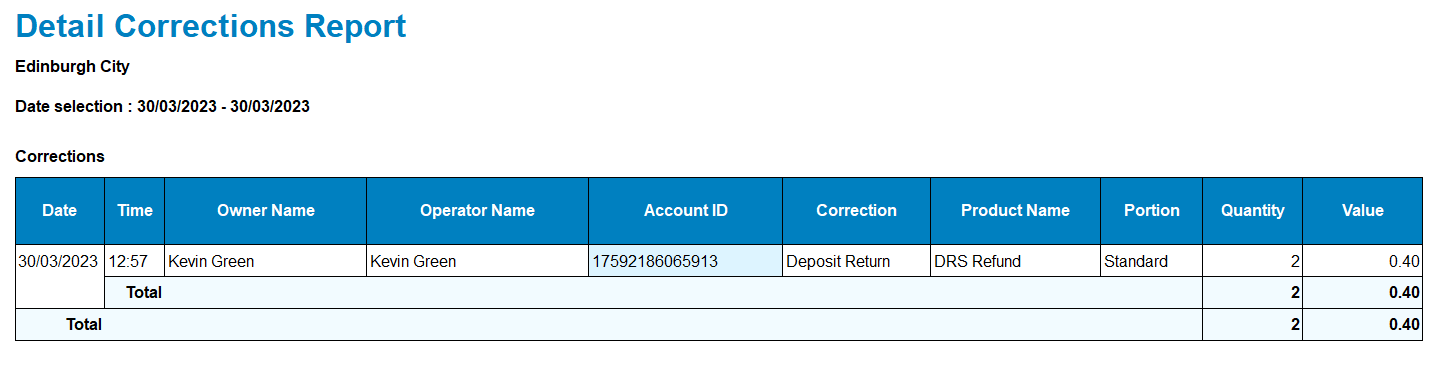
Detailed Corrections
-
Apply filters to look at the correction type Deposit Return (or whatever name was configured)
-
iOrder Platform (for App and White Label Web Ordering)
The configuration remains the same for any other product / choice combination.
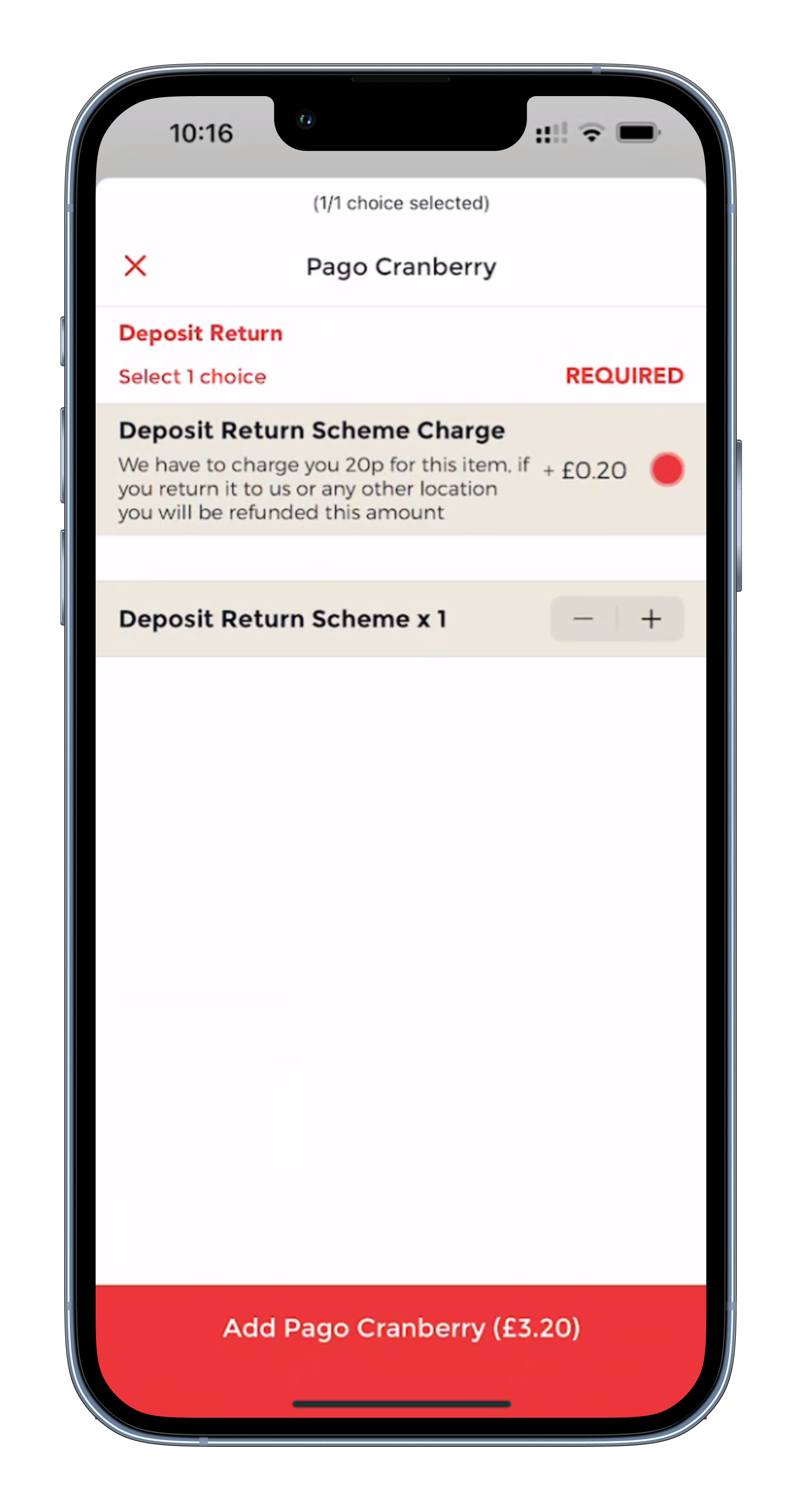
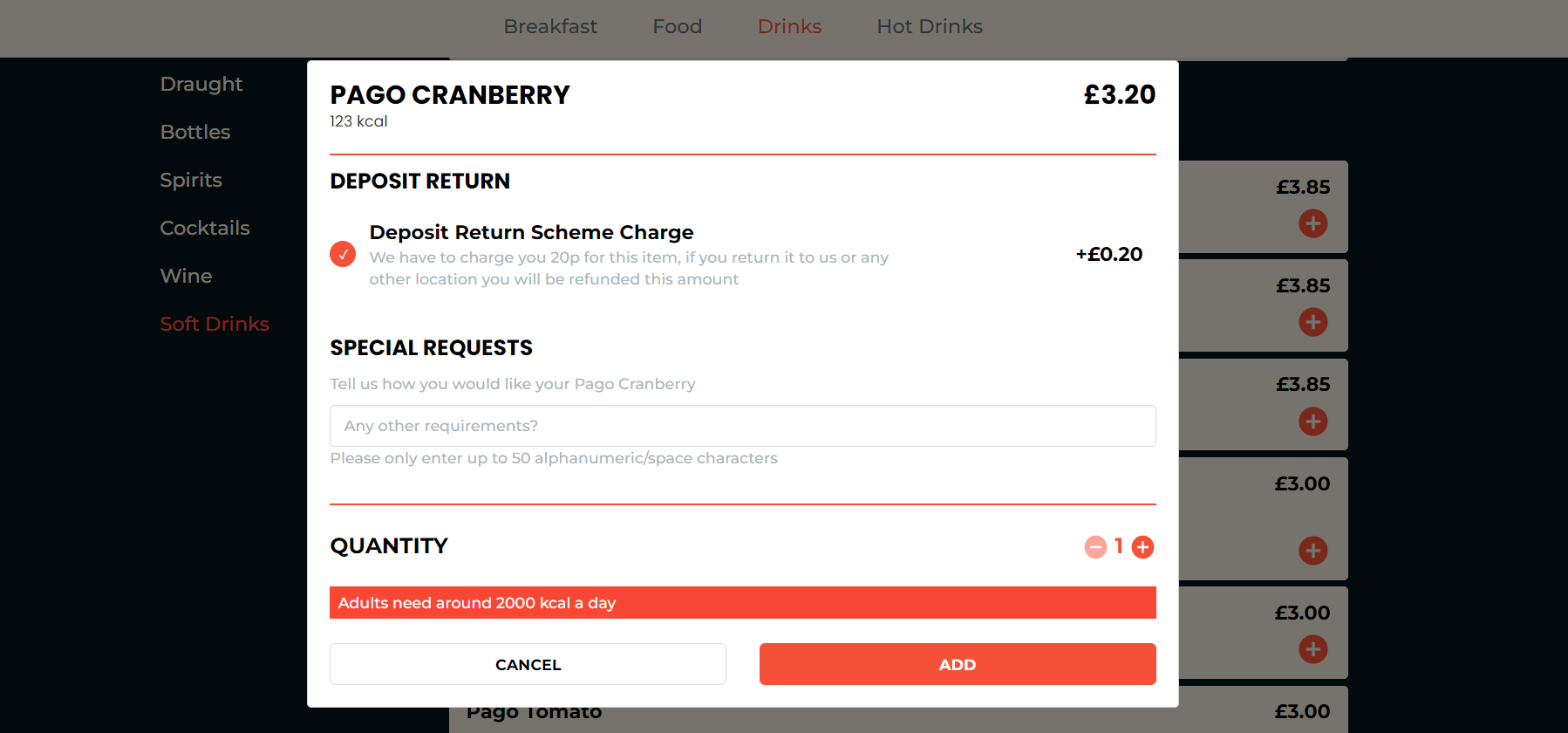
It is suggested that some informative text is added so customers can understand why an additional 20p is being added as part of the sale of the item that contains a DRS charge value.
27 September 2022: White Label App & Web Ordering do not currently support choices of a single item enhancements will be added to both applications to support the use case of a single item being pre-selected (and that cannot be de-selected)
15 February 2023: Web Ordering 1.34 now supports this feature
Suggested images of what this may look like are displayed below
Web Ordering
App